Your appointments
Steps
1. Open your visits
Tap Visits at the bottom of the screen.
You should see: Appointments, with Upcoming, Past and All at the top. Each visit shows its date, service, time and status.
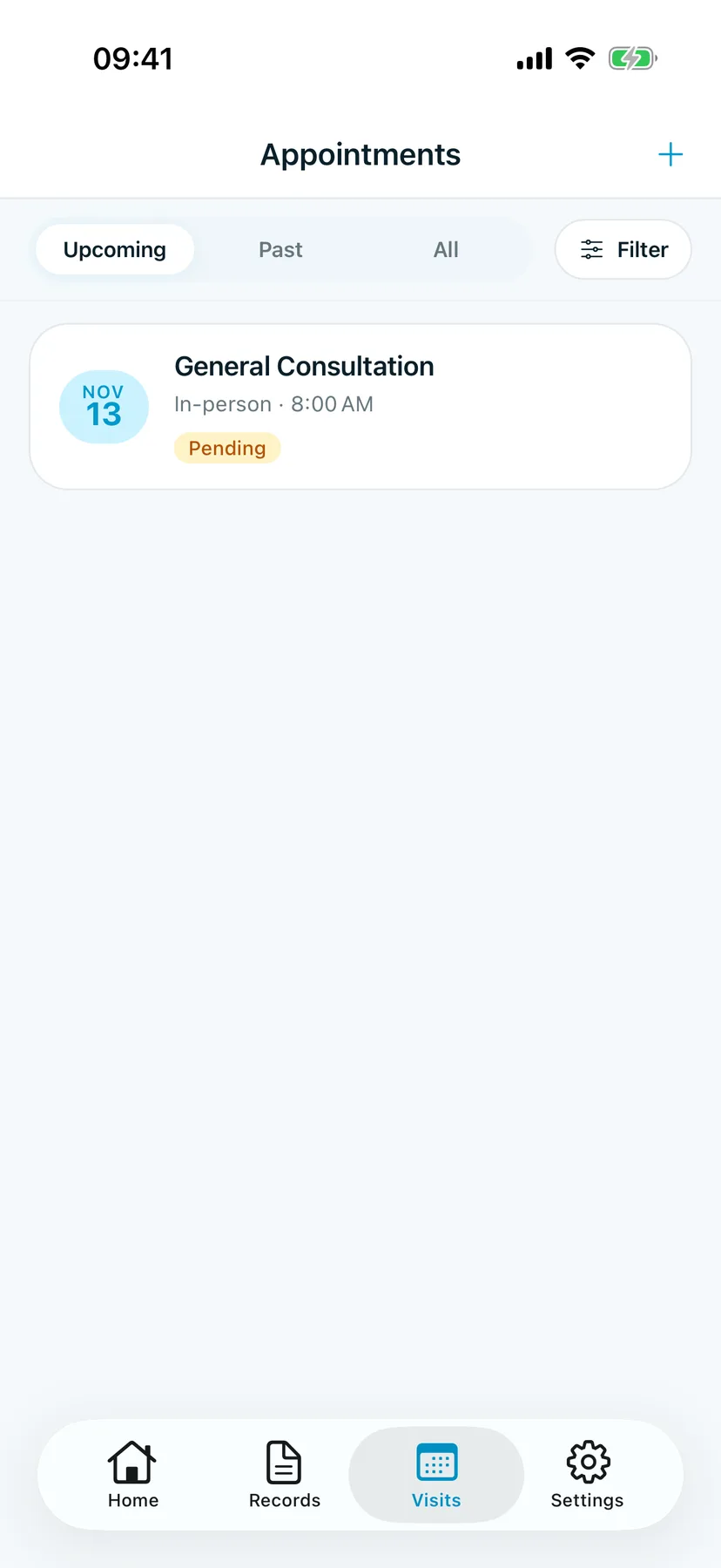
The status tells you where the booking stands:
- Pending: the clinic hasn't confirmed it yet.
- Confirmed: the clinic is expecting you.
- Cancelled: you or the clinic cancelled it.
Tap Filter to narrow the list by status or date.
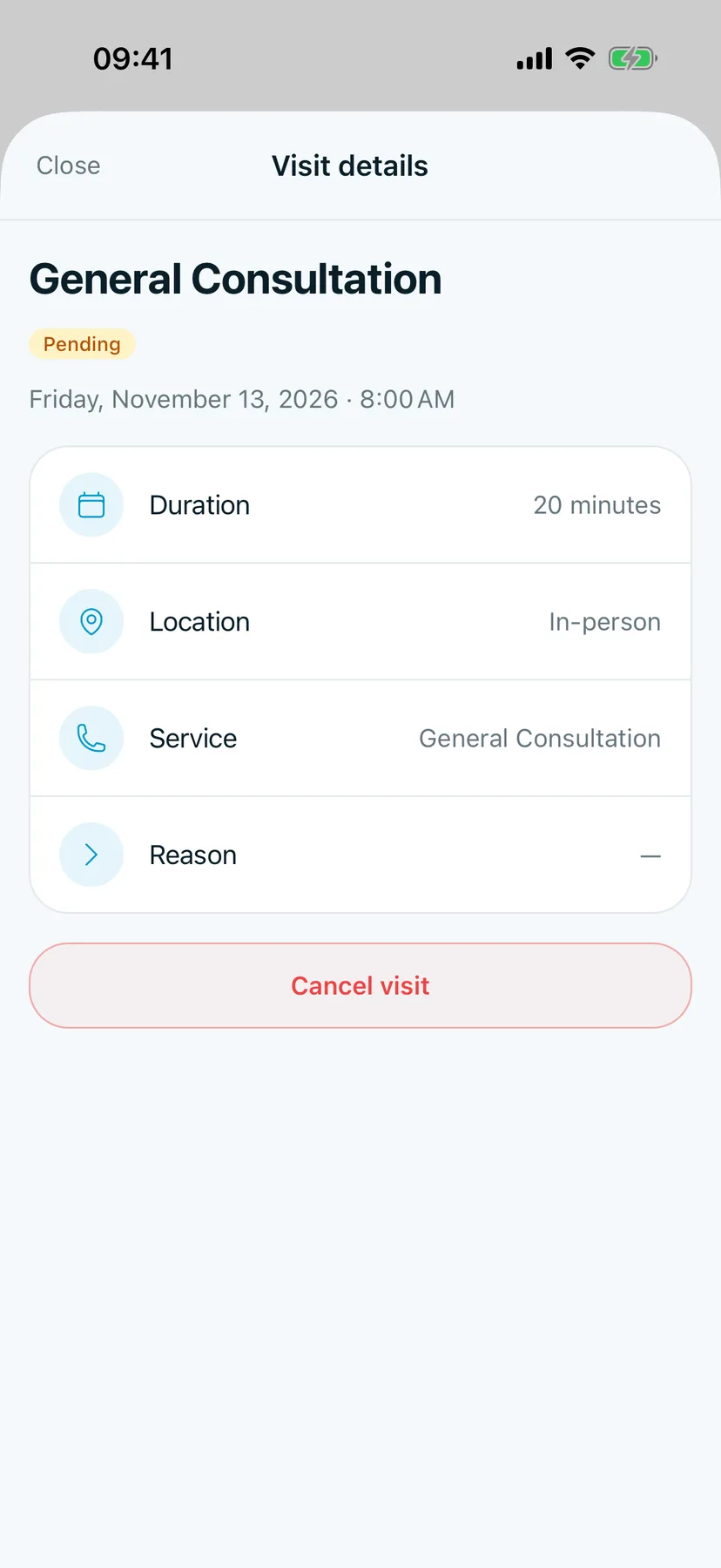
2. Open a visit
Tap a visit.
You should see: Visit details, with the status, date and time, Duration, Location, Service and Reason.
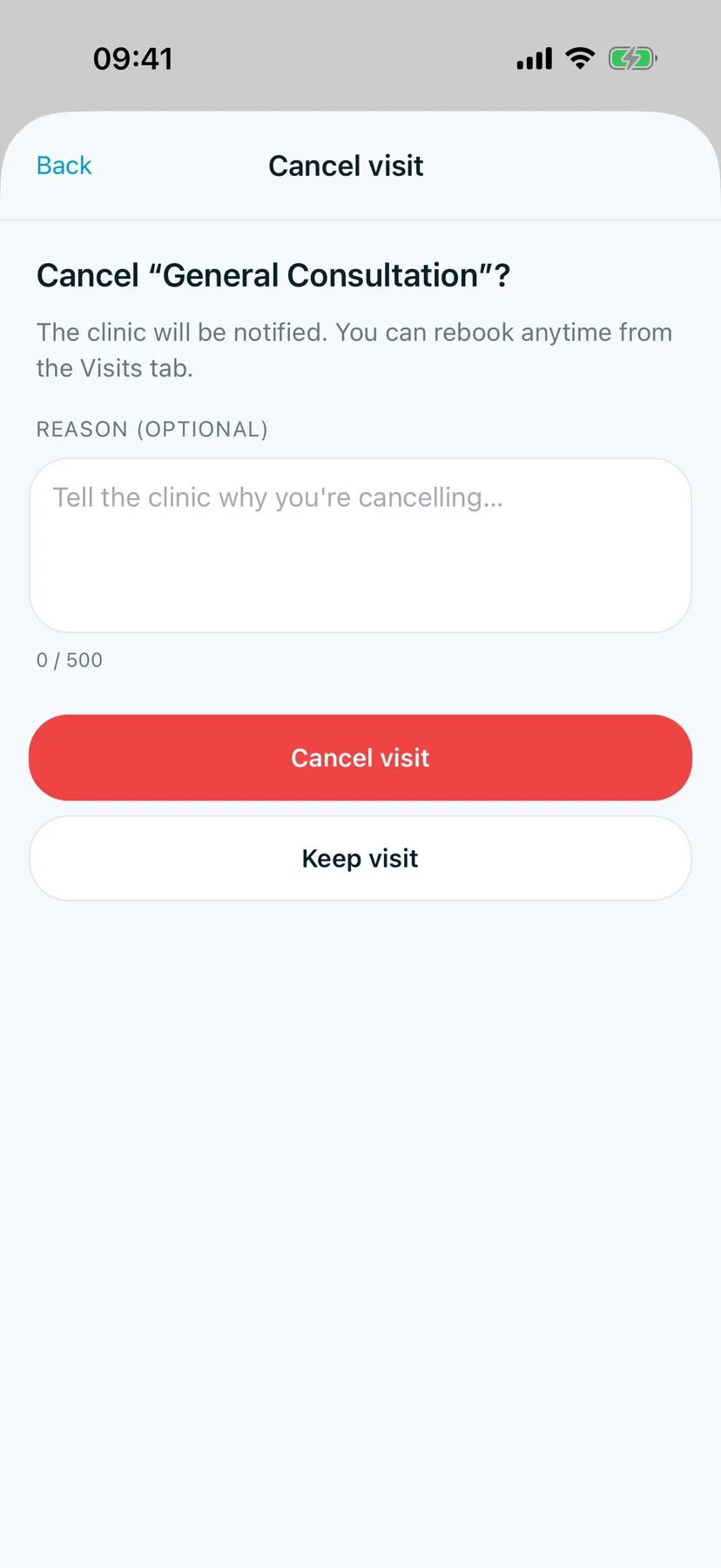
3. Cancel a visit
Tap Cancel visit. Add a reason for the clinic if you like, then tap Cancel visit again. Tap Keep visit if you change your mind.
You should see: Cancel "General Consultation"? The clinic is told when you cancel.
Tips
See it on Home
Your next visits also show under Upcoming on Home. Tap View all to come here.