Apple Health
Steps
1. Start from Home
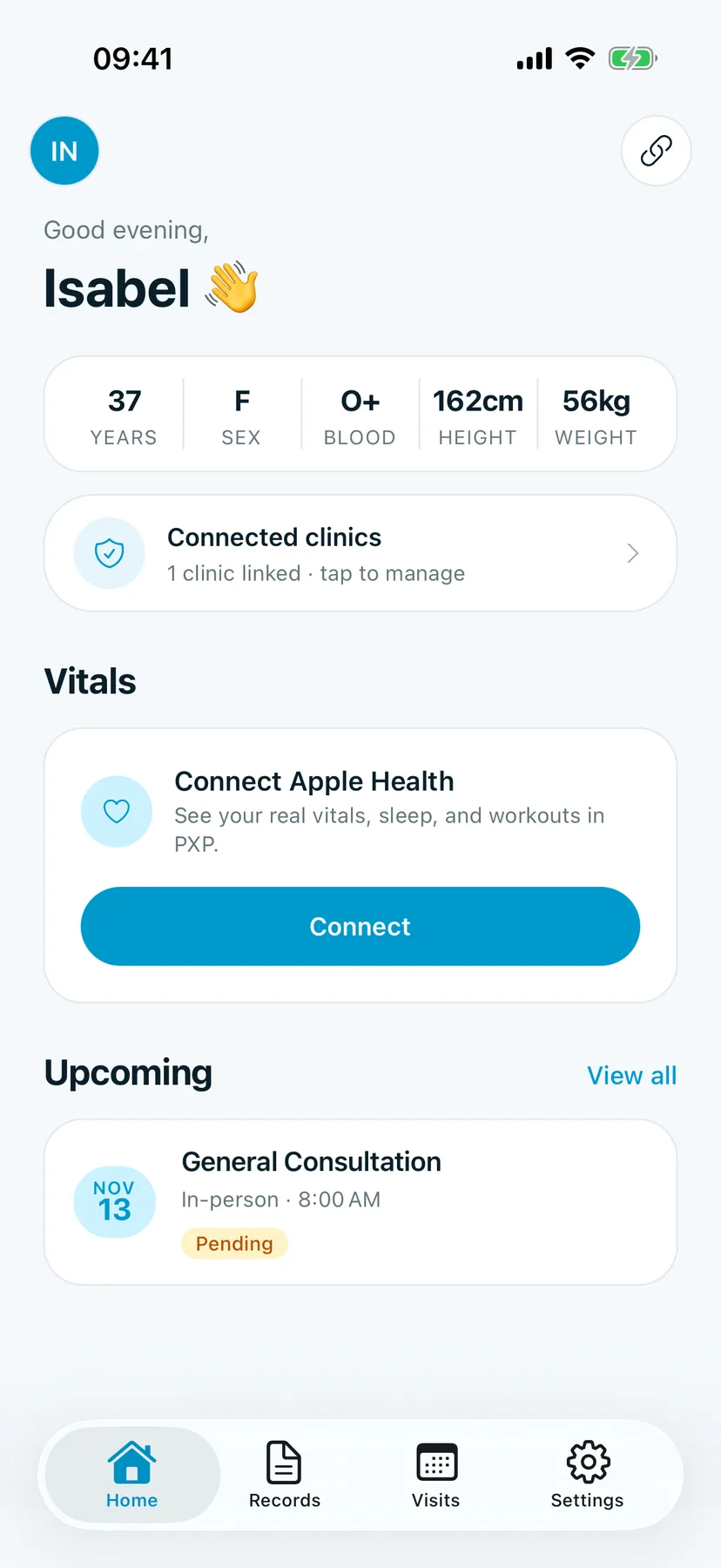
On Home, find Vitals, then tap Connect on the Connect Apple Health card. You can also start from Settings › Apple Health.
You should see: Connect Apple Health, "See your real vitals, sleep, and workouts in PXP."
2. Choose what to share
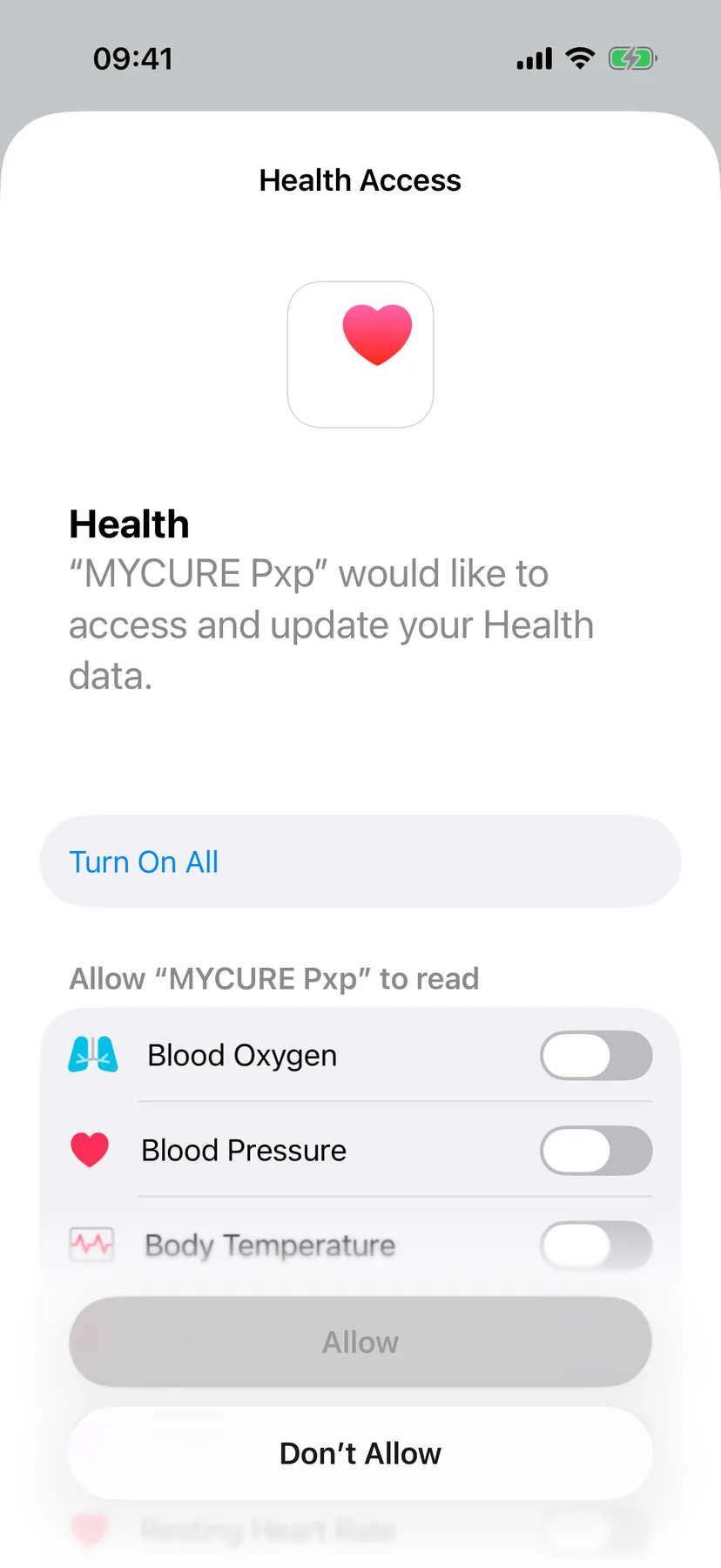
iPhone asks which readings MYCURE Pxp may read. Tap Turn On All, or turn on just the ones you want, then tap Allow.
You should see: the Health Access sheet listing each kind of reading.
3. See your vitals
Go back to Home. Your latest readings show under Vitals. Settings › Apple Health now shows it's connected.
Tips
Good to know
You can change what the app may read at any time in the iPhone Settings app › Health › Data Access & Devices › MYCURE Pxp.