Connect your clinic
Before you start
- Sign in.
- Your clinic must already have you as a patient. If you're new to the clinic, connect after your first visit.
Steps
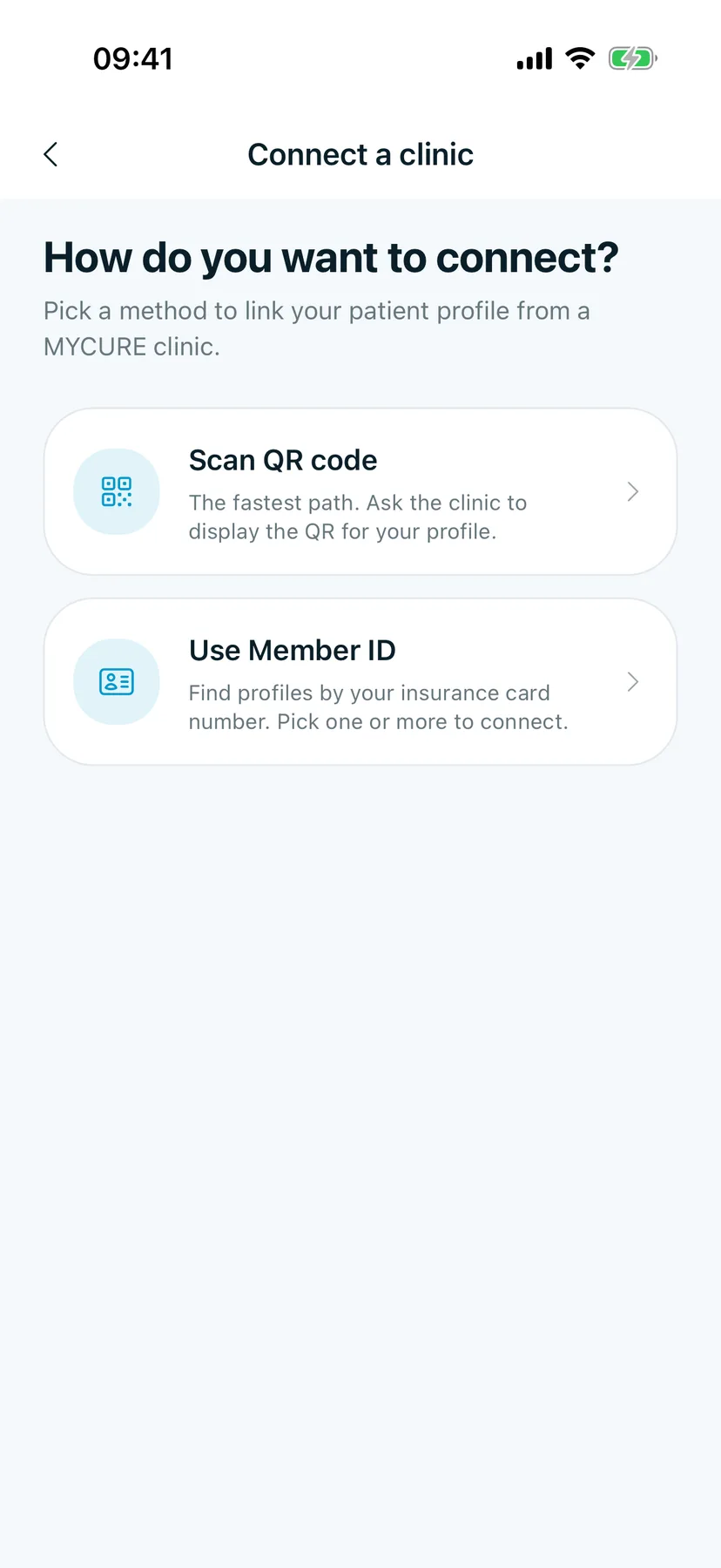
1. Open Connect a clinic
On Home, tap the link icon at the top right.
You should see: How do you want to connect?, with Scan QR code and Use Member ID.
2. Choose how to connect
- Scan QR code is the fastest. Ask the clinic to show the QR code for your profile, then point your camera at it.
- Use Member ID finds your chart by the number on your insurance card.
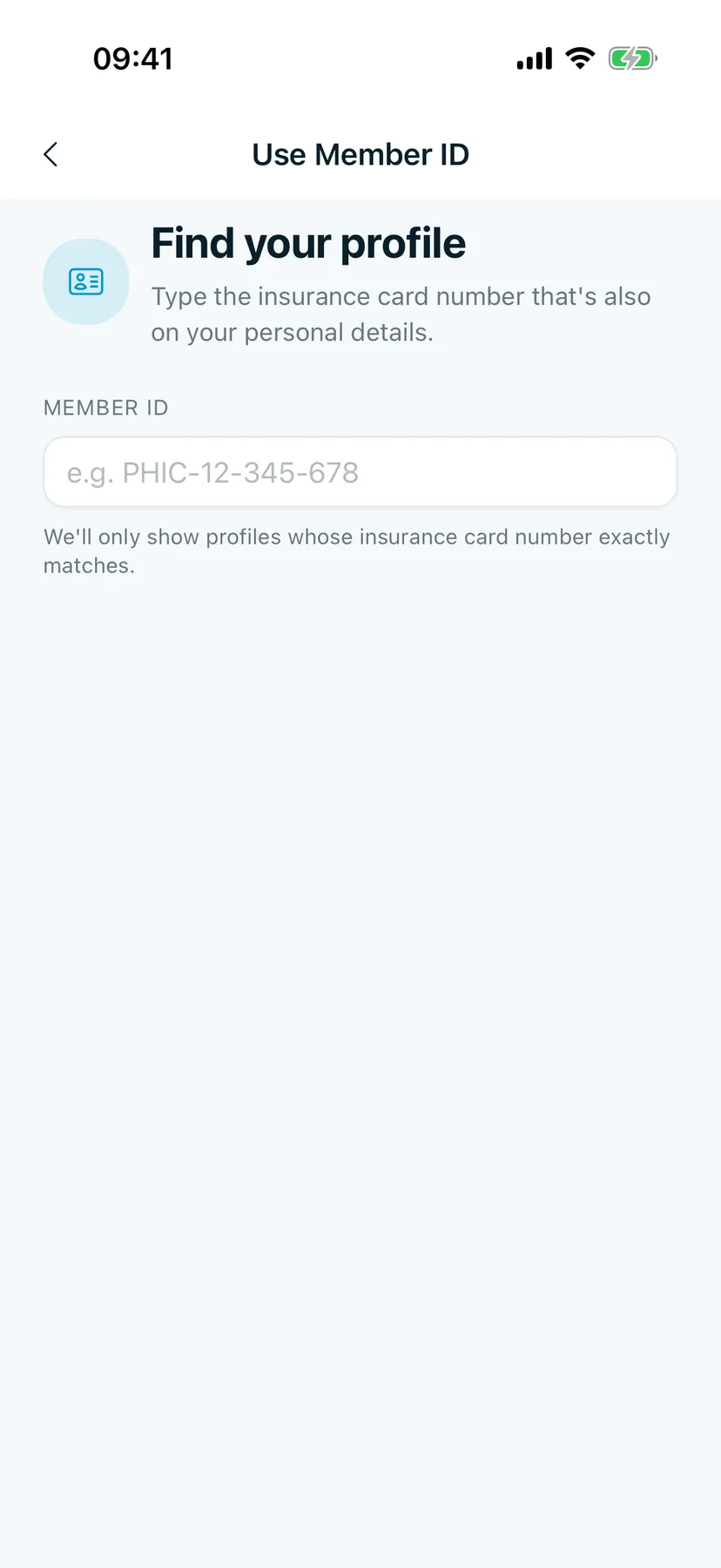
The steps below use Use Member ID. Tap it.
You should see: Find your profile, with a Member ID box.
3. Type your Member ID
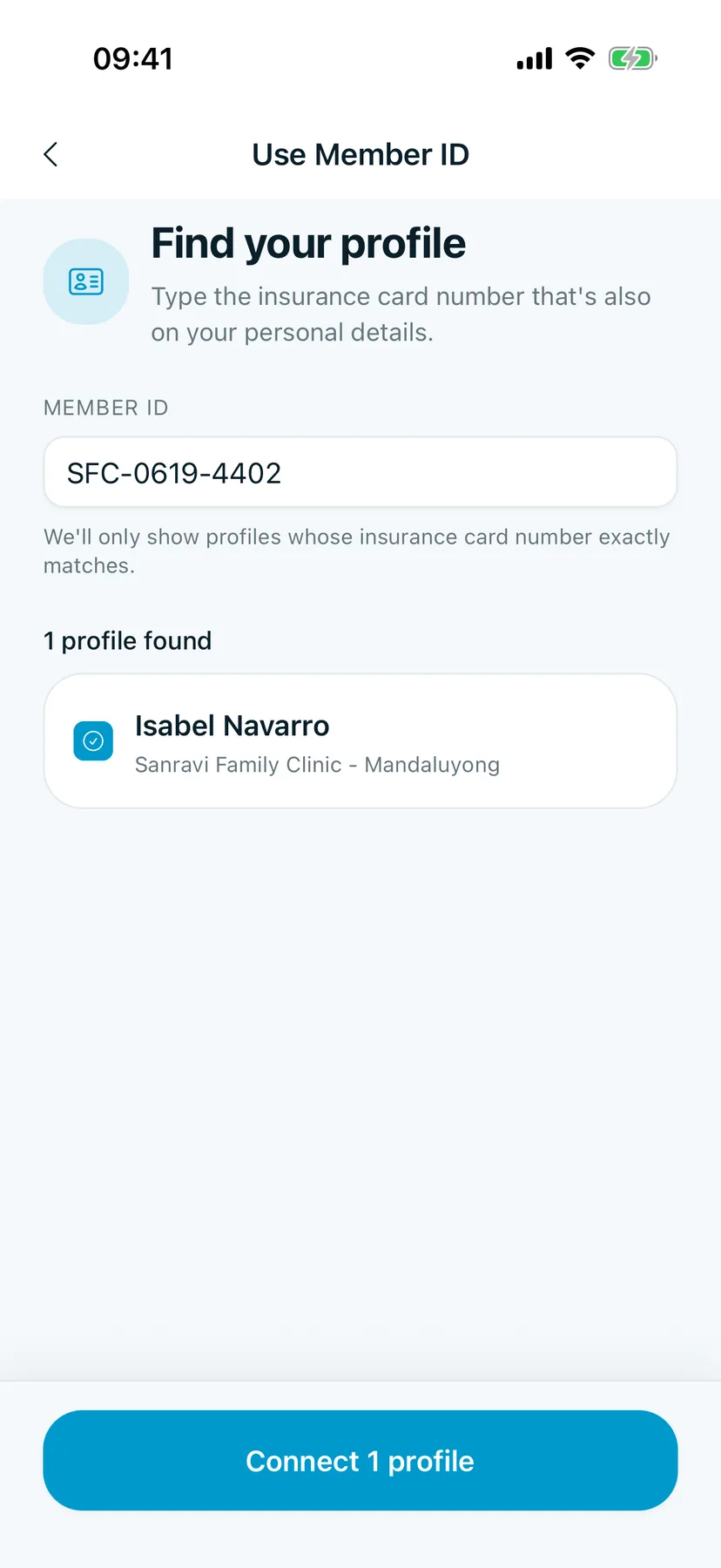
Type the number on your insurance card into Member ID. It must match the number your clinic has on file exactly.
You should see: 1 profile found, with your name and the clinic under it. Tap your profile to select it.
4. Connect
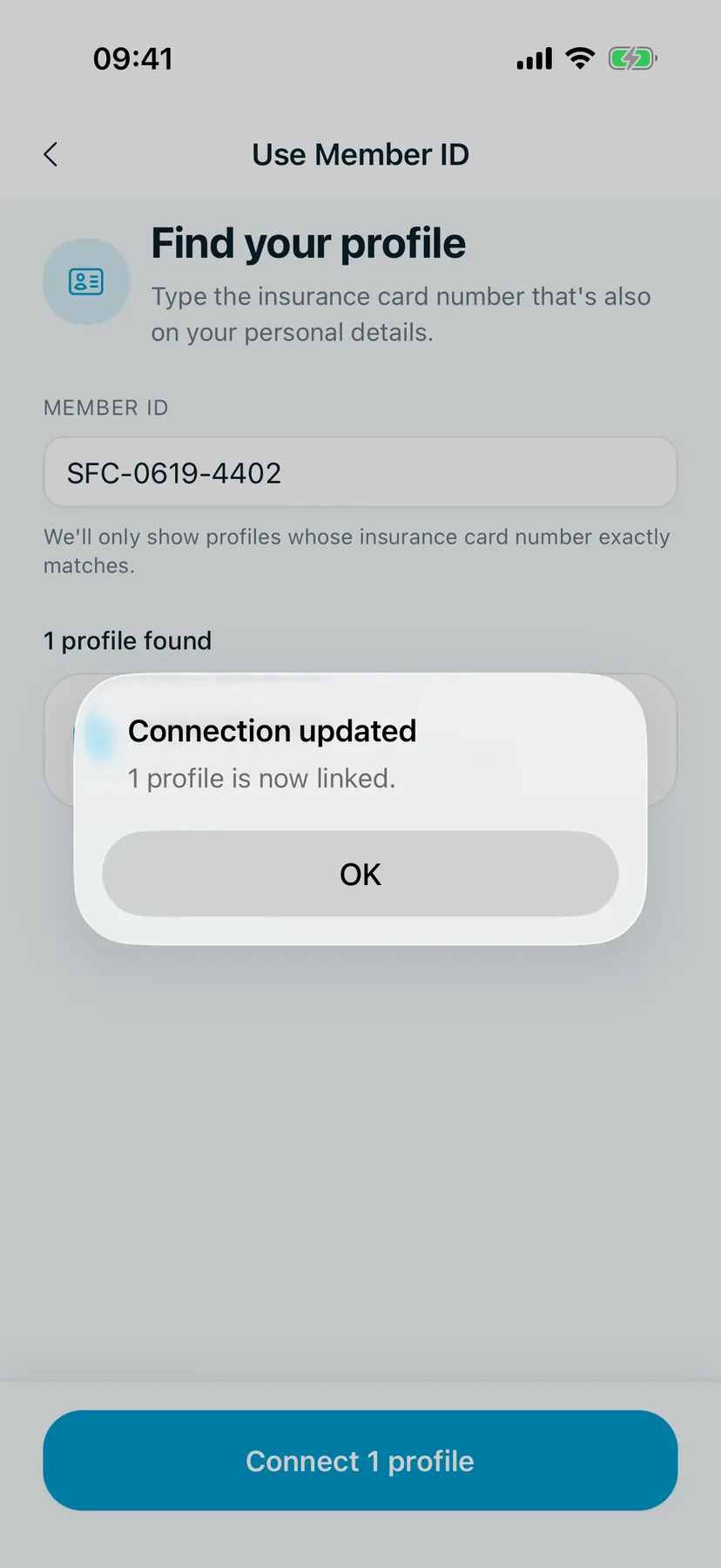
Tap Connect 1 profile.
You should see: Connection updated. Tap OK.
5. Check your connected clinics
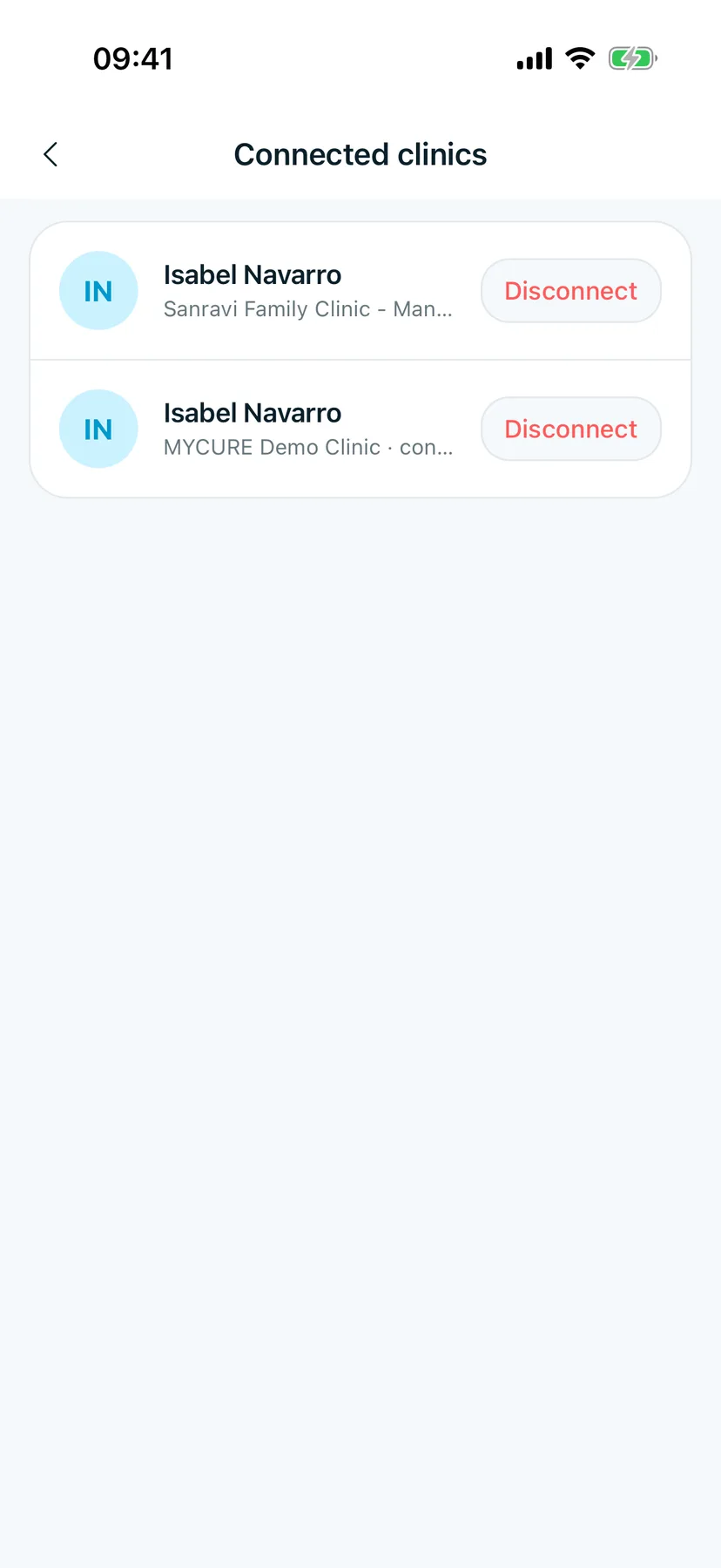
The app opens Connected clinics. Each row is one clinic chart linked to your account. You can also open this list from Connected clinics on Home.
You should see: a row for each clinic, with a Disconnect button.
Disconnect a clinic
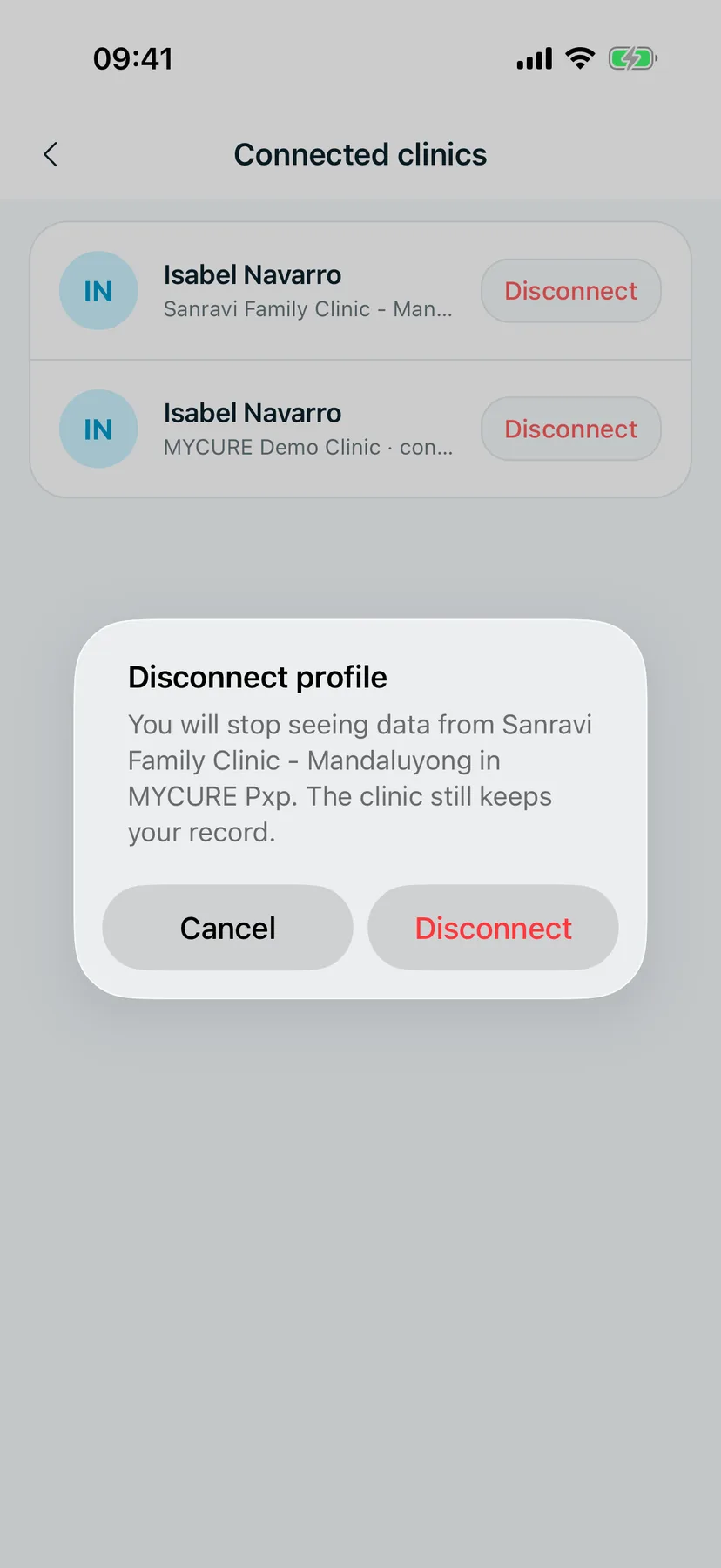
Tap Disconnect next to the clinic, then Disconnect again to confirm. You stop seeing that clinic's records in the app. The clinic still keeps your record, and you can connect again any time.
Tips
If something goes wrong
No profiles found. The number doesn't match what the clinic has. Check it against your card, or ask the clinic to show you the QR code instead.
Good to know
Connecting shows records your clinic has released to you. A result your clinic hasn't released yet won't appear until it is.