Sign in and a first look
Steps
1. Open the sign-in screen
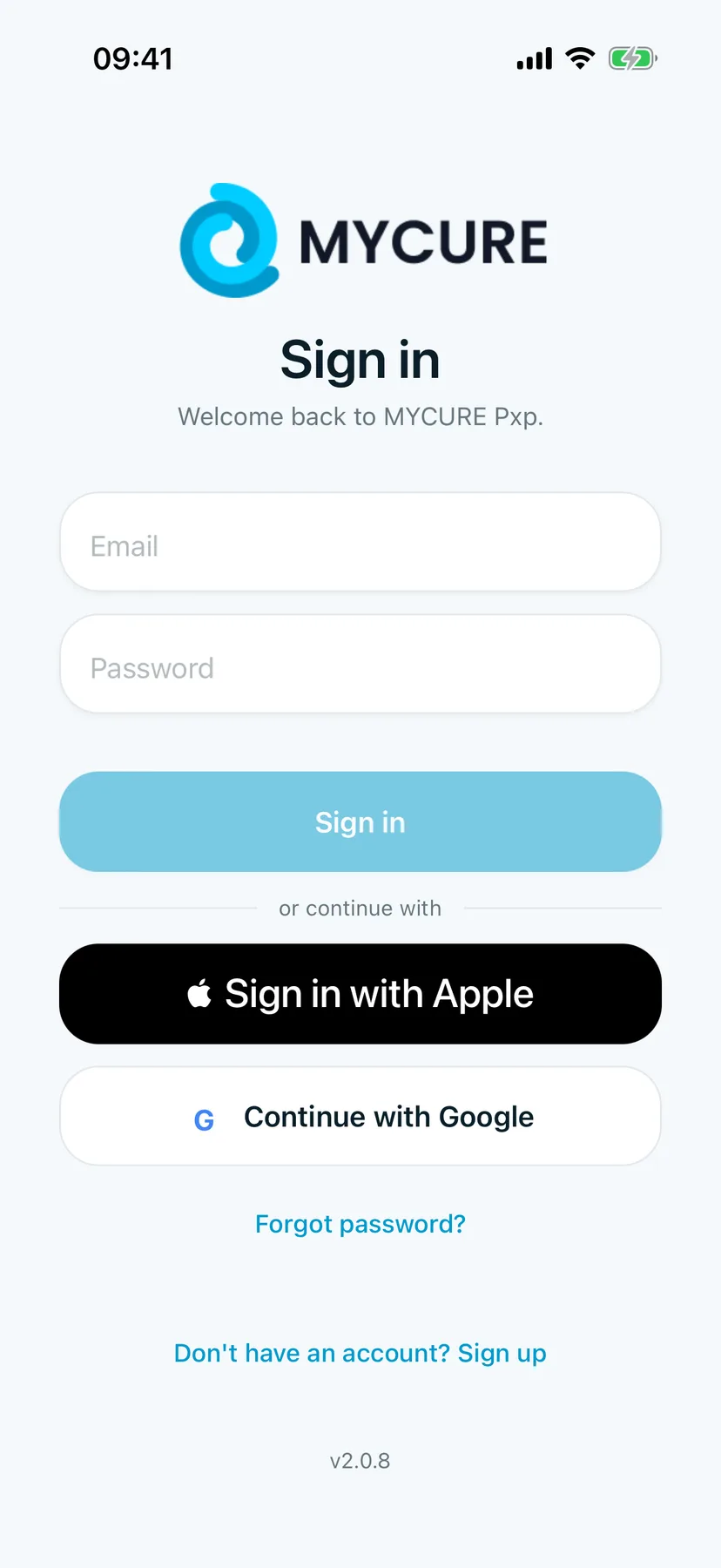
Open MYCURE Pxp. If you see the welcome pages, tap Skip (or I have an account on the last page).
You should see: Sign in, with Welcome back to MYCURE Pxp. under it.
2. Sign in
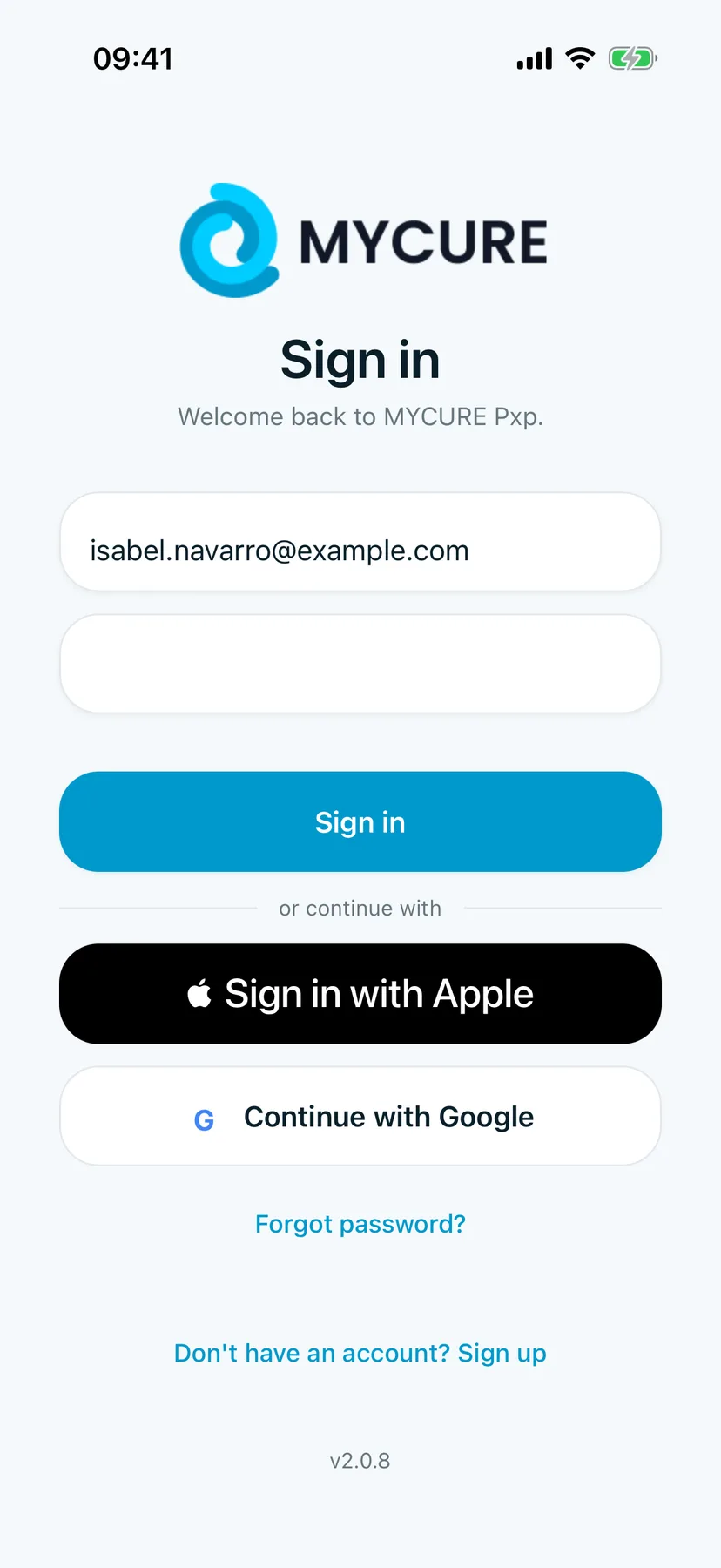
Type your Email and Password, then tap Sign in. If you made your account with Apple or Google, tap Sign in with Apple or Continue with Google instead.
You should see: your email filled in and the Sign in button ready.
3. Read Home
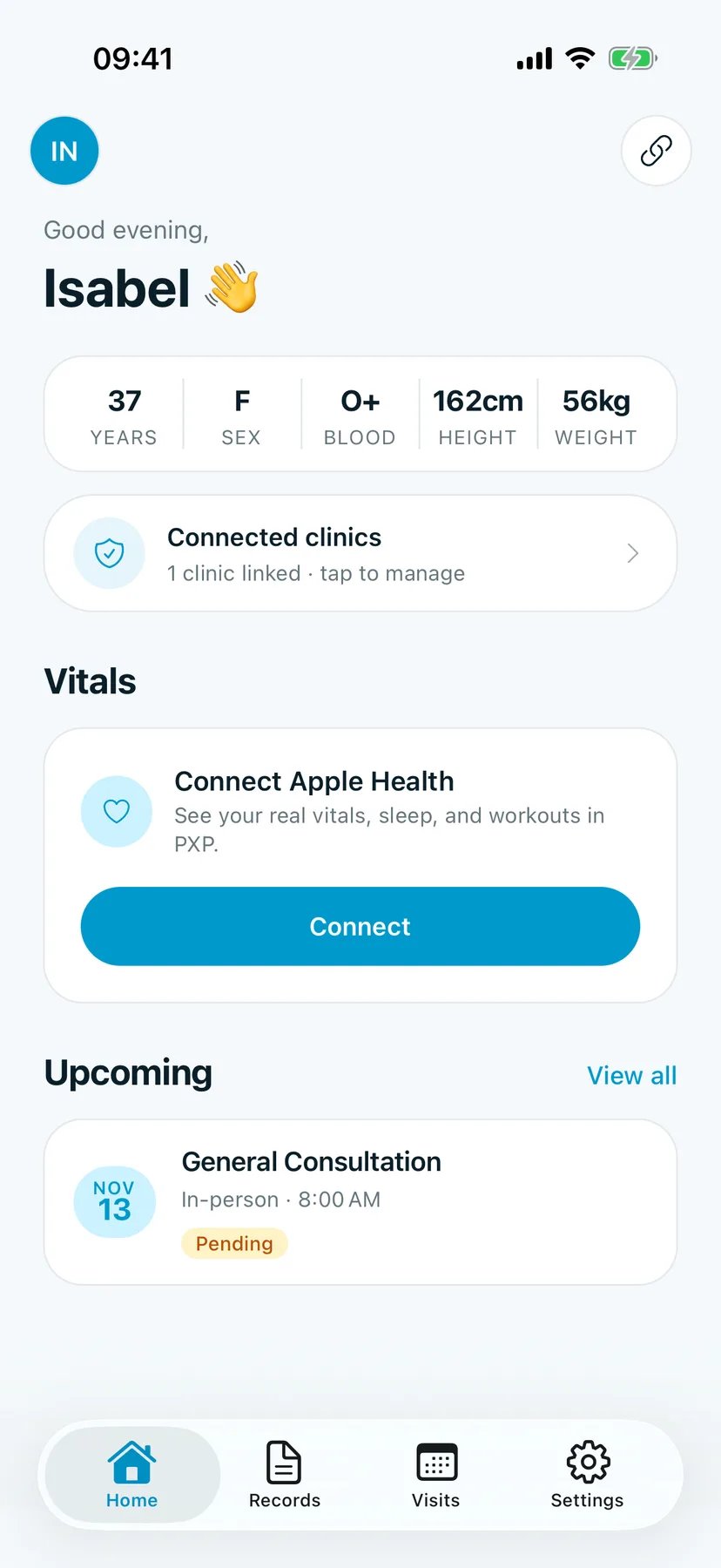
After you sign in, the app opens Home.
- The greeting shows your first name.
- The row under it shows your age, sex, blood type, height and weight from your profile.
- Connected clinics shows how many clinics you're linked to. Tap it to manage them.
- Vitals shows readings from Apple Health once you connect it.
- Upcoming lists your next visits. Tap View all for the rest.
You should see: your name, your details, Connected clinics, Vitals and Upcoming.
4. Move between tabs
Use the tabs at the bottom of the screen:
- Home: your summary.
- Records: prescriptions, lab and imaging results and certificates from your clinics.
- Visits: your appointments, and booking new ones.
- Settings: invoices, privacy and security, theme, Face ID and Apple Health.
Tap your initials at the top left of Home to open your profile. Tap the link icon at the top right to connect a clinic.
Tips
Forgot your password?
On the Sign in screen, tap Forgot password? and type your email. You'll get an email with a link to set a new one.
Good to know
A brand-new account shows a Get started checklist on Home. Tick through it or dismiss it; it goes away once you're set up.